Help · Design · Basics
Timeline
Shows all features in their order; roll back the marker, reorder features and redefine sketch planes.
Timeline at the bottom of the window
How it works
- Drag the marker to the left: the features after it are suppressed and the model shows the state before them.
- Drag a feature icon onto another one, or right-click and choose Move left / Move right.
- Right-click a sketch, Redefine sketch plane, then click another plane or planar face.
A feature stays after everything it uses: after its sketch, its plane and the features whose bodies it changes. If that is not possible, a message gives the reason.
A sketch can only be placed on planes and faces that come before it.
Example: Sign on a higher plane
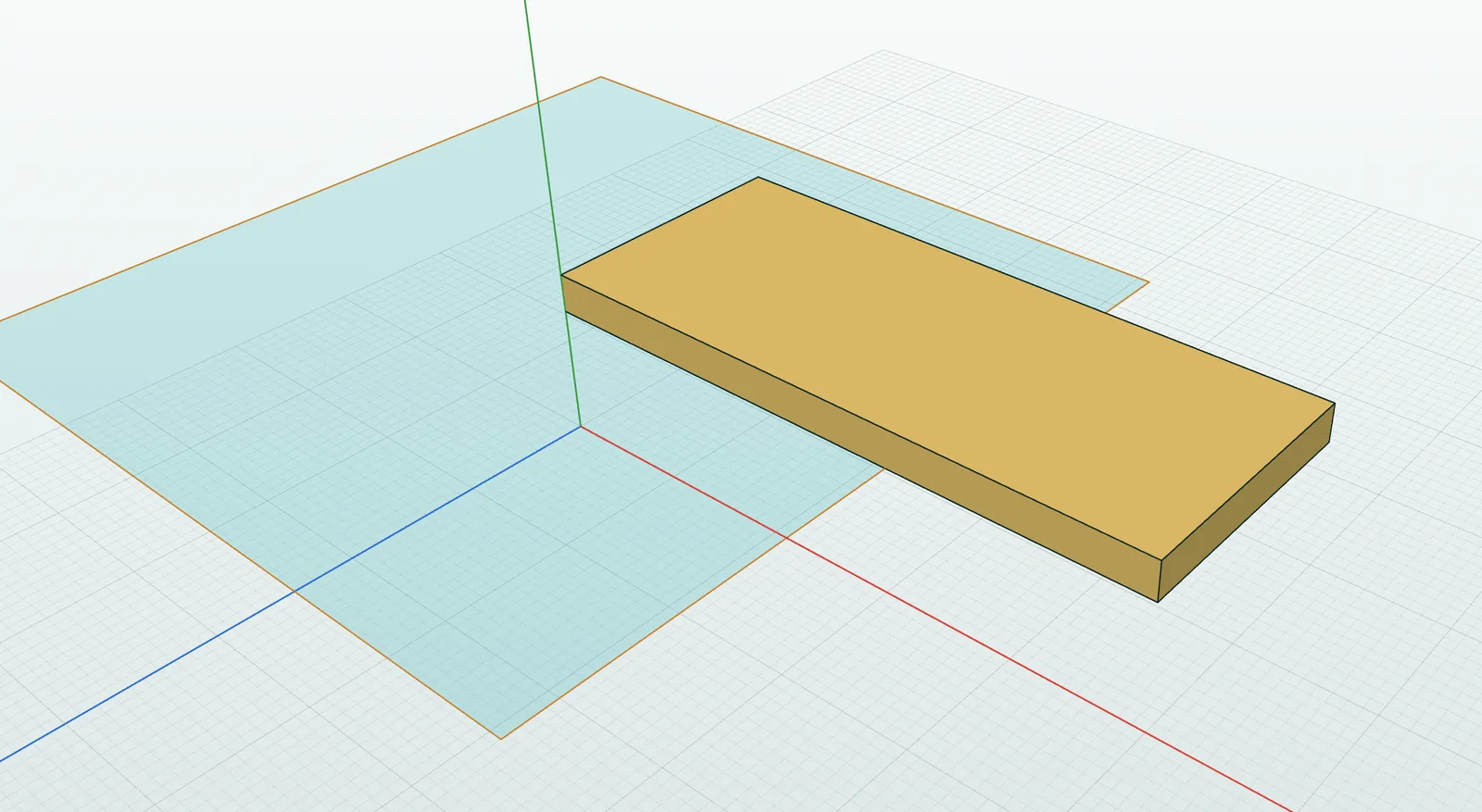
A 50 × 20 mm sign, 3 mm thick. Its sketch first lay on XZ and is now placed on a plane at a height of 10 mm; for that, the plane was dragged in front of the sketch in the timeline.
- Sketch on XZ: Rectangle 50 × 20 mm; Extrude 3 mm.
- Create an offset plane of 10 mm and drag it in front of the sketch in the timeline.
- Right-click the sketch, Redefine sketch plane, click the new plane. The sign now stands 10 mm higher.
Download zeitleiste.calicad and load it in CaliCAD with File → Open.
Frequently asked questions
Why can I not drag a feature further forward? It uses a feature that has to come before it, for example its sketch or the body it changes. The message says which one.
How do I put a sketch on another face? Right-click the sketch, Redefine sketch plane, then click the new plane or face. It has to have been created before the sketch.
Is Timeline free in CaliCAD? Yes. Timeline is part of the design tools, which you use with a free account without a time limit. A plan adds the example file; a new account gets everything in Maker for the first 7 days.