Help · Design · Create
Standard part
Inserts screws, nuts, washers, bearings, profiles and other bought-in parts from a catalogue of 116 standards and 8,928 selectable parts, instead of drawing them.
Create → Standard part
How it works
- Choose Create → Standard part.
- Type what you need into the Search field, for example “countersunk M4”, “608” or “T-nut”; or choose a Group. The list shows name and standard; a click selects the family.
- Choose the Size and, for screws and pins, the standard length.
- Click the plane or planar body face the part is to sit on and enter the Center.
- Rotate it if needed or flip it with To the other side of the plane, choose the operation and confirm.
- Plane
- Origin plane, construction plane or planar body face. It is the seating face of the part.
- Part
- Catalogue with search and groups, with size and standard length below. If you switch the family, the size stays if it exists there too: a socket head cap screw M3 becomes a countersunk screw M3.
- Length
- Only for parts that come in any length, for example shafts, tubes, slot profiles and lead screws. Screws and pins choose their standard length in the Part field.
- Center (plane coordinates)
- Position of the part axis on the plane as x and y of the plane.
- Rotation about the axis
- Turns the part about its own axis, for example a hexagon parallel to an edge.
- To the other side of the plane
- Flips the part: the nut then sits under the plate instead of on top.
- Operation
- New body is the default, so a standard part stays a part of its own. With Cut it becomes a tool and cuts its shape out of other bodies, for example the space for a nut.
Position: the plane is the face the part sits on. Whatever rests on it stands above it: screw head, nut, washer. Whatever is inside the component goes into the face: shank, pin, heat-set insert, bearing in its seat. Below the catalogue list, each family has one sentence about its position.
A length outside the standard can be built; the timeline then shows the note “no standard length”, because that screw cannot be bought.
Threads are not modelled: the shank is smooth at nominal diameter. That keeps large assemblies fast; the Hole command with its standard selection supplies the hole dimensions.
Groups in the catalogue: Screws (15 standards, 1,580 parts), Set screws (4 standards, 344 parts), Nuts (12 standards, 126 parts), Washers (9 standards, 234 parts), Retaining rings (3 standards, 34 parts), Pins and keys (7 standards, 1,543 parts), Rolling bearings (22 standards, 396 parts), Plain bearings (2 standards, 281 parts), Linear motion (3 standards, 36 parts), Shafts and couplings (4 standards, 209 parts), Belts and lead screws (6 standards, 175 parts), Profiles and stock (11 standards, 3,120 parts), Threaded inserts (2 standards, 87 parts), Motors (3 standards, 30 parts), Fans and electronics (4 standards, 137 parts), Magnets (4 standards, 104 parts), Seals (1 standard, 437 parts), Other (4 standards, 55 parts).
Example: Plate with socket head cap screw and nut
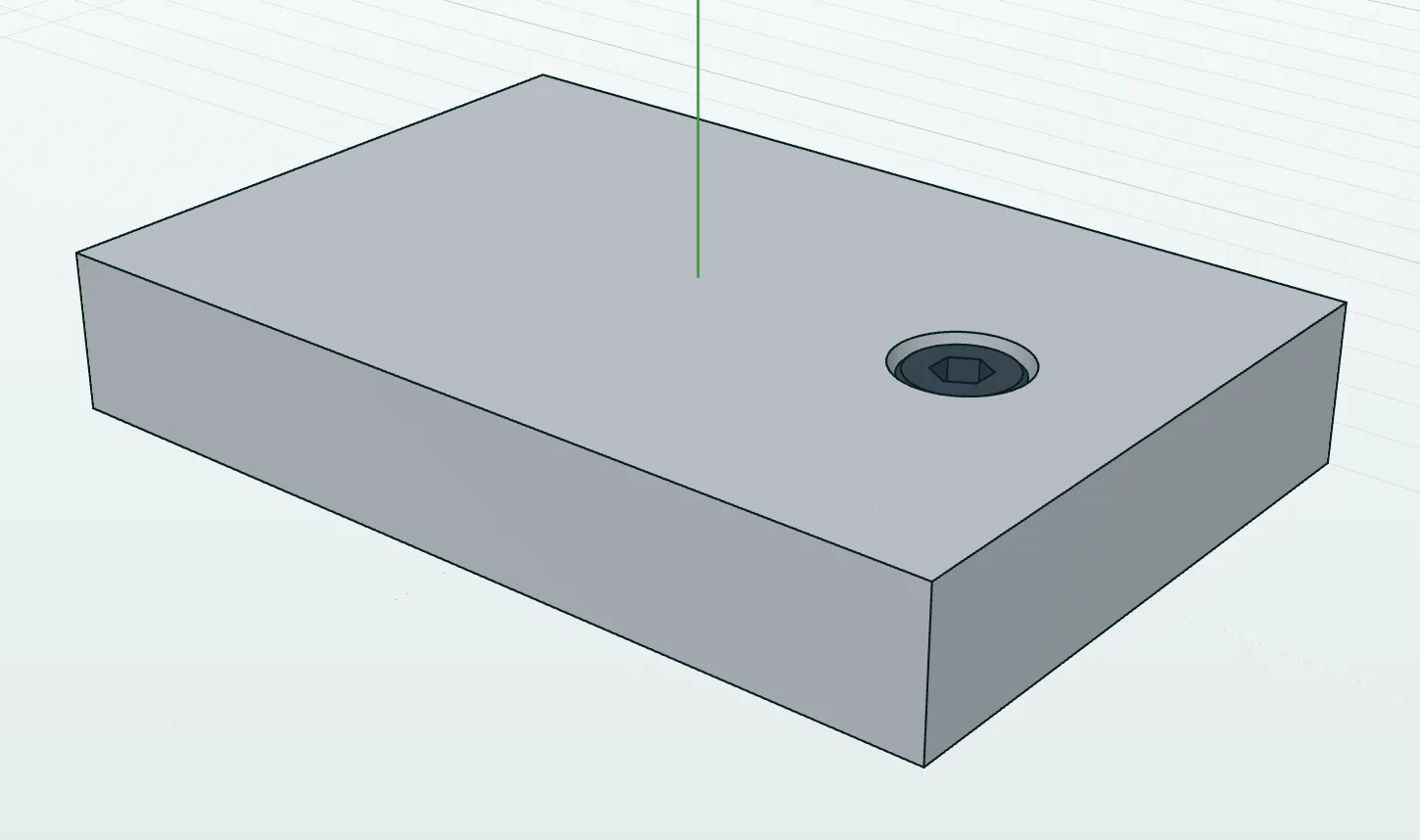
A 60 × 40 × 10 mm plate with a counterbore for M4. In it sits an M4 × 12 socket head cap screw with its head below the surface; under the plate, a hex nut M4 holds it.
- Box on XZ: 60 × 40 × 10 mm.
- Offset plane 10 mm above XZ, and on it a sketch with a point at (18 | 0).
- Hole at the point: standard Counterbore for socket head cap screw (ISO 4762, DIN 974-1), size M4. The dialog sets diameter 4.5 mm, counterbore diameter 8 mm and counterbore depth 4.4 mm.
- Offset plane 5.6 mm above XZ: the bottom of the counterbore.
- Standard part on this plane, centre (18 | 0): socket head cap screw, size M4, length 12 mm.
- Standard part on XZ, centre (18 | 0): hex nut ISO 4032, size M4, To the other side of the plane turned on.
Download normteil.calicad and load it in CaliCAD with File → Open.
Frequently asked questions
How do I find the right screw? Type the type and size into the Search field, for example “countersunk M4” or “socket M3”. The list shows every matching standard by name; you choose size and standard length below it.
Why does the screw sit in the component and not on it? The plane is the seating face: the head rests on it, the shank goes in. To put the screw on the other side, turn on To the other side of the plane. That is why the plane lies on the bottom of the counterbore in the example.
How do I get the matching hole for the screw? With the Hole command and its Standard field: clearance hole, tap drill hole, countersink or counterbore for the same thread size. Or use the standard part as a tool with the operation Cut.
Do the screws have a thread? No. The shank is smooth at nominal diameter, so that large assemblies with many screws calculate quickly. For a printed thread, use the Thread command.
Is Standard part free in CaliCAD? No. Standard part is part of the Maker plan, together with the example file. A new account gets everything in Maker for the first 7 days, without payment details.